
How Do I Tell What My AI Agent Spent?
Your agent is doing things. Some of those things cost money. You should be able to see exactly what — and ATXP makes that the default, not an afterthought.
Here’s how to read the transaction log and understand what your agent spent.
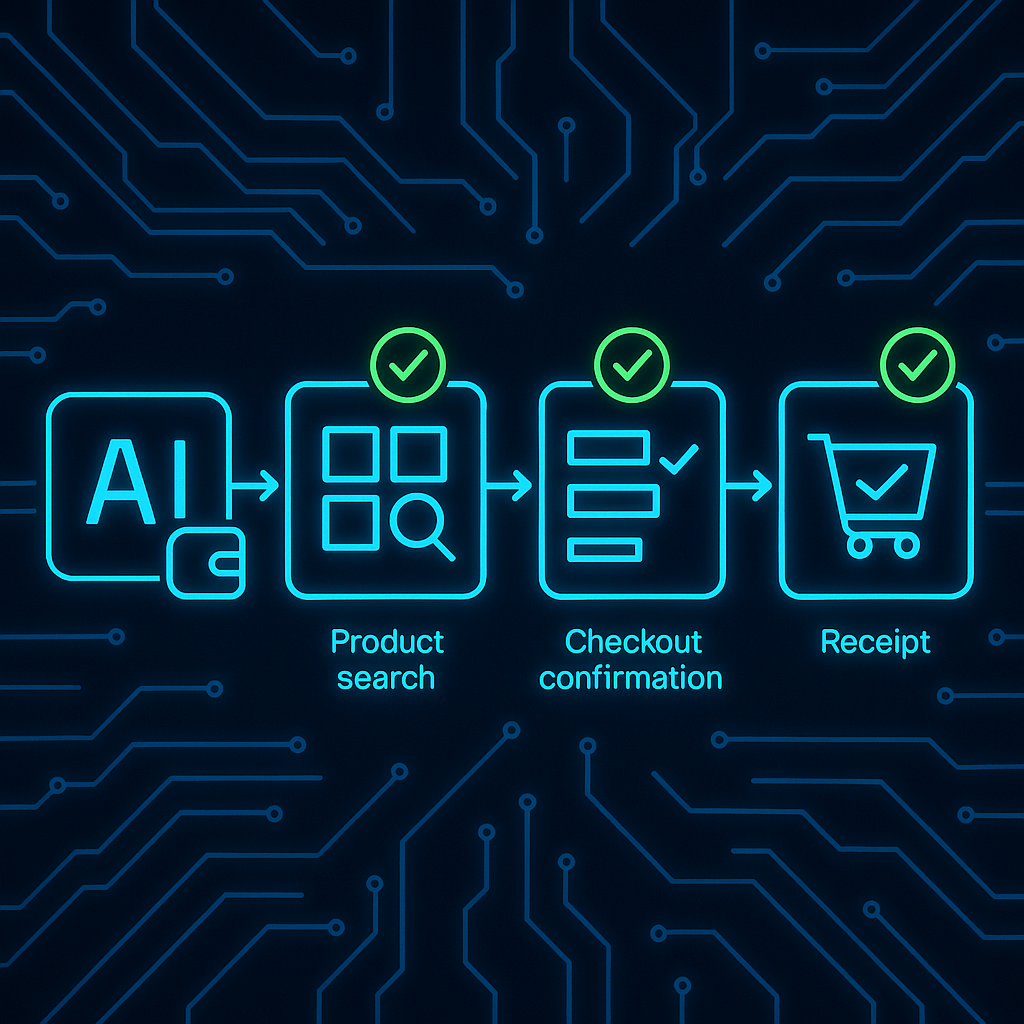
The short answer
Run npx atxp log to see every tool call your agent made — timestamp, tool, input, output, and cost. The ATXP dashboard gives the same view in a browser. Everything is logged automatically. You don’t configure it; it’s on by default.
What the transaction log contains
An agent transaction log is a per-call record of every action an agent took: which tool was called, when, with what inputs, what output was returned, and what it cost. Unlike a general activity log, an agent transaction log is tied to a financial ledger — each entry corresponds to a deduction from the agent's pre-funded balance. This gives operators a combined audit trail and cost record, making it possible to verify what the agent did and understand exactly what drove the spend.
Every entry in the log includes:
| Field | What it is | Example |
|---|---|---|
timestamp | When the call was made | 2026-03-06 14:23:11 |
tool | Which tool was called | web_search |
input | What the agent passed to the tool | "competitor pricing Q1 2026" |
output_summary | Summary of what the tool returned | "10 results returned, top result: ..." |
cost_tokens | IOU tokens charged | 0.05 |
task_session | Which task run this belongs to | task_a3f2b |
For purchases, additional fields:
| merchant | Where the purchase was made | amazon.com |
| amount_usd | Dollar value of the purchase | $24.99 |
| order_id | Merchant confirmation number | #113-8234521 |
How to access the log
Terminal:
# Last 20 entries
npx atxp log

# Last 100 entries
npx atxp log --last 100

# Filter by tool type
npx atxp log --tool web_search

# Filter by date range
npx atxp log --from 2026-03-01 --to 2026-03-06

# Filter by task session
npx atxp log --session task_a3f2b
Dashboard:
The ATXP web dashboard at atxp.ai shows the same log with grouping, filtering, and visualization. Useful for understanding spending patterns across multiple tasks.
Reading the cost breakdown
A typical research task in the log looks like this:
2026-03-06 14:23:11  web_search        "competitor pricing page updates"    0.03 tokens
2026-03-06 14:23:18  web_browse        "competitor.com/pricing"             0.12 tokens
2026-03-06 14:23:31  web_browse        "competitor2.com/pricing"            0.11 tokens
2026-03-06 14:23:45  web_browse        "competitor3.com/pricing"            0.09 tokens
2026-03-06 14:24:02  llm_complete      [summarize findings, 3,200 tokens]   0.08 tokens
2026-03-06 14:24:05  email_send        "weekly pricing digest to user"      0.02 tokens
─────────────────────────────────────────────────────────────────────────────────────────
Total:                                                                       0.45 tokens
The dominant costs in this task: web browsing (3 pages at ~0.11 each) and the LLM summarization call. Search and email are cheap. This is the typical pattern for research tasks.
Where costs escalate:
- Long context windows — an LLM call processing a 50,000-token context costs significantly more than one processing 3,000 tokens. If you’re seeing high LLM costs, check what’s in the context.
- Many browsing calls — a monitoring agent checking 100 URLs daily will accumulate browsing costs. Consider whether all 100 are necessary, or whether a targeted subset achieves the same goal.
- Image generation — images are more expensive per call than text. High-volume image generation adds up. Check the count if costs seem high.
Setting spend alerts and reviewing regularly
Even with a pre-funded balance ceiling, it’s good practice to review the log periodically — not to catch every call, but to understand the cost pattern of new workflows.
# Set an alert when balance drops to 20% remaining
npx atxp limits --alert 20

# Set a daily hard cap
npx atxp limits --daily 5
What to look for in the first two weeks of a new workflow:
- Are the tool calls what you expected?
- Are any single calls unusually expensive? (Often a sign of unexpectedly large context)
- Is the total cost per task run in the range you estimated?
- Are there repeated calls that shouldn’t be repeating? (Loop bugs show up clearly as identical entries)
Exporting for accounting or reconciliation
# CSV export — opens in any spreadsheet
npx atxp log --export csv > agent-transactions-march.csv

# JSON export — for programmatic processing
npx atxp log --export json > agent-transactions-march.json
The CSV includes all log fields. For business expense reconciliation, the merchant, amount_usd, and order_id fields map directly to standard expense report fields.
Multiple agents: per-agent spend visibility
Each agent has its own account and its own log. If you’re running multiple agents, you see each one’s spend separately:
npx atxp log --agent "research-agent"
npx atxp log --agent "commerce-agent"
No pooling, no mixing. Research agent costs don’t appear in the commerce agent’s log and vice versa. This makes cost attribution clean when different agents handle different functions.
For more context on what drives agent costs: how much does an AI agent cost? → For the full spending control guide: how ATXP’s IOU model caps spending →
Frequently asked questions
How do I see what my AI agent spent?
npx atxp log — every tool call, timestamp, cost, input, and output. Full audit trail, on by default.
What does the transaction log show?
Tool name, timestamp, input, output summary, tokens charged, task session. For purchases: merchant, amount, order ID.
Can I see spending by task?
Yes — npx atxp log --session [id] filters to a specific task run.
How do I set a budget alert?
npx atxp limits --alert 20 alerts when 80% of the balance is consumed. Add --daily 5 for a hard daily cap.
What if the agent spent more than expected?
Check the log for large individual calls (usually LLM with long context) or repeated calls (loop bugs). The log shows exactly which calls drove the cost. How to debug agent spending issues →
Can I export the history?
Yes — npx atxp log --export csv or --export json.